


Setting Up n8nClaw: Self-Hosted AI Assistant in n8n
Setting Up n8nClaw: Self-Hosted AI Assistant in n8n
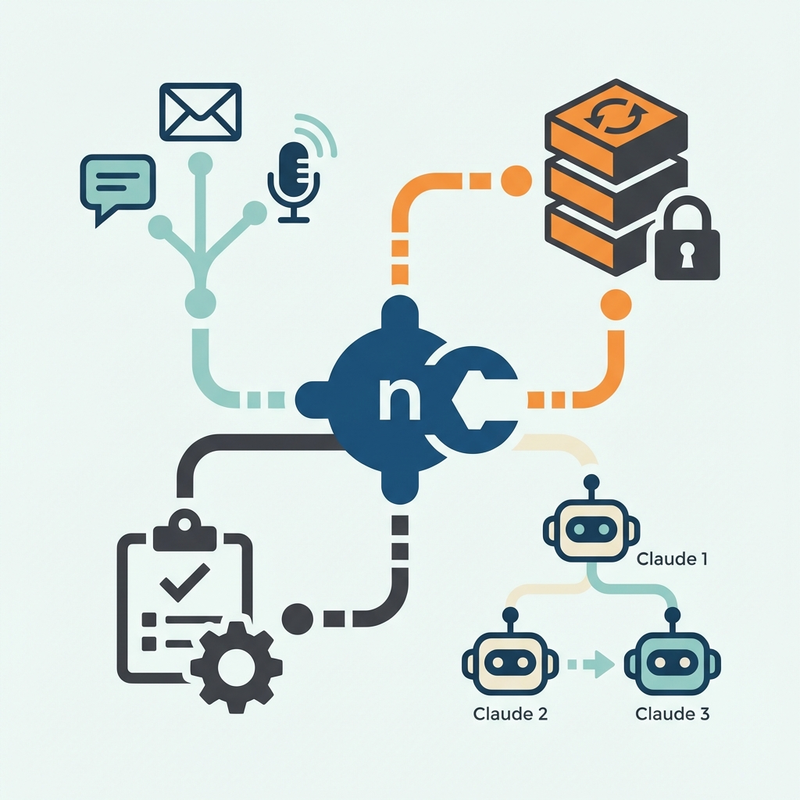
n8nClaw is a self-hosted AI assistant that runs entirely inside n8n workflows. Unlike API-based solutions, this gives you full control over your AI agent’s behavior, memory, and data.
What You’re Building
A Claude-powered assistant that:
- Responds across multiple channels (Telegram, WhatsApp, Gmail)
- Maintains persistent memory using vector embeddings
- Manages tasks with specialized sub-agents
- Runs autonomous operations on schedule
- Learns about you over time
Think of it as your own personal Claw Marketing agent (from our previous workflow) but with multi-channel support and long-term memory.
Prerequisites
Required Services
You’ll need accounts and API keys for:
Essential:
- n8n (self-hosted or cloud)
- OpenRouter (Claude API access)
- Supabase (vector database for memory)
- PostgreSQL (chat history storage)
- OpenAI (embeddings API)
- Telegram Bot Token
Optional:
- Evolution API (WhatsApp integration)
- Tavily (web research)
- Google Workspace (Gmail, Docs, Gemini)
Cost Estimate
- n8n: Free (self-hosted) or $20/month (cloud)
- OpenRouter: ~$0.003/1K tokens (Claude Sonnet 4.5)
- Supabase: Free tier works for most use cases
- OpenAI embeddings: ~$0.0001/1K tokens
- Total: Expect $10-30/month depending on usage
Technical Requirements
- Basic n8n workflow knowledge
- Comfort with JSON configuration
- Access to manage credentials and webhooks
- Ability to run SQL queries (for Supabase setup)
Installation Steps
Step 1: Get the Workflow
1. Go to github.com/shabbirun/n8nclaw
2. Download `n8nClaw.json` from the repo
3. In n8n, go to Workflows → Import from File
4. Select the downloaded JSON file
You’ll see a complex workflow with multiple nodes. Don’t panic – we’ll configure it step by step.
Step 2: Set Up Data Tables
n8nClaw uses three n8n data tables to track state.
Create Table 1: User Profiles
- Name: `n8nclaw_users`
- Schema:
- `user_id` (string) – Telegram/WhatsApp user ID
- `name` (string) – User’s name
- `profile` (string) – Dynamic personality/context
- `created_at` (datetime)
- `updated_at` (datetime)
Create Table 2: Tasks
- Name: `n8nclaw_tasks`
- Schema:
- `task_id` (string, auto-generated)
- `user_id` (string)
- `description` (string)
- `status` (string) – pending/in_progress/completed
- `created_at` (datetime)
Create Table 3: Subtasks
- Name: `n8nclaw_subtasks`
- Schema:
- `subtask_id` (string, auto-generated)
- `task_id` (string)
- `description` (string)
- `assigned_to` (string) – Which sub-agent handles it
- `status` (string)
- `created_at` (datetime)
Copy the table IDs – you’ll need them for workflow configuration.
Step 3: Configure Supabase Vector Store
n8nClaw uses Supabase with pgvector for semantic memory.
In Supabase SQL Editor:
-- Enable pgvector extension
create extension if not exists vector;

-- Create memory table
create table n8nclaw_memory (
  id bigserial primary key,
  user_id text not null,
  content text not null,
  embedding vector(1536),
  created_at timestamp with time zone default now()
);

-- Create index for similarity search
create index on n8nclaw_memory using ivfflat (embedding vector_cosine_ops)
  with (lists = 100);
Get your Supabase connection details:
- Project URL: `https://[project-id].supabase.co`
- Service role key: Found in Settings → API
- Database password: From your project setup
Step 4: Set Up Credentials in n8n
Go to Settings → Credentials and create:
OpenRouter API
- Credential type: HTTP Request
- Authentication: Generic Credential Type
- Add header: `Authorization: Bearer YOUR_OPENROUTER_KEY`
Supabase
- Host: Your project URL
- Database: `postgres`
- User: `postgres`
- Password: Your database password
- Port: `5432`
- SSL: Enabled
OpenAI API
- API Key: Your OpenAI key (for embeddings only)
Telegram Bot
- Access Token: Get from @BotFather on Telegram
- Commands:
- `/start` – Initialize conversation
- `/help` – Show available commands
- `/memory` – Show recent memory
PostgreSQL (for chat history)
- Host: Your Postgres instance
- Database name
- User/password
- SSL enabled
Step 5: Configure Workflow Variables
Open the imported workflow and find these nodes to update:
Main Agent Node:
- Replace `YOUR_USERNAME` with your actual username
- Replace `YOUR_TELEGRAM_CHAT_ID` with your Telegram chat ID (get from @userinfobot)
- Update table IDs to match your n8n tables
Memory Workflow:
- Update Supabase credentials
- Set embedding model: `text-embedding-3-small`
- Configure retrieval limit: 5 relevant memories
Sub-Agent Nodes:
- Research Agent: Add Tavily API key if using
- Email Manager: Configure Gmail OAuth
- Document Manager: Set up Google Docs access
Heartbeat Schedule:
- Default: Every hour
- Adjust based on your needs (don’t go below 15 min to avoid rate limits)
Step 6: Test Each Component
Before activating, test each workflow segment:
Test 1: Telegram Connection
1. Send a message to your bot
2. Check if webhook receives it
3. Verify chat history saves to Postgres
Test 2: Claude Response
1. Send `/help` command
2. Should get response from Claude
3. Check OpenRouter dashboard for API call
Test 3: Memory Retrieval
1. Have a conversation about a topic
2. Wait for memory workflow to run (check schedule)
3. Ask about the same topic later – should recall context
Test 4: Task Management
1. Ask agent to “create a task to research AI tools”
2. Check `n8nclaw_tasks` table for new entry
3. Should assign to appropriate sub-agent
Step 7: Activate and Monitor
1. Click “Activate” in the workflow
2. Enable all sub-workflows (memory, heartbeat, sub-agents)
3. Monitor execution logs for first 24 hours
4. Check error logs in n8n executions panel
Configuration Tips
Optimize Memory Usage
The default 15-message context window works well but you can adjust:
- Increase to 25 for longer conversations
- Decrease to 10 for faster responses
- Memory workflow runs hourly – change to daily if you want less frequent summarization
Customize Agent Personality
Edit the system prompt in the Main Agent node:
You are a helpful AI assistant with access to:
- Long-term memory about the user
- Task management capabilities
- Specialized sub-agents for research, email, and documents

Your personality: [professional/casual/technical - customize here]

When you don't know something, say so. Don't make up information.
Set Up Sub-Agent Routing
The workflow routes tasks to sub-agents by complexity:
- Haiku – Quick tasks, simple questions
- Sonnet – Research, analysis, writing
- Opus – Complex reasoning, long documents
Adjust routing logic in the Task Manager node based on keywords or task type.
Common Issues
Memory Not Retrieving
Problem: Agent doesn’t recall past conversations
Fix:
1. Check if memory workflow is running (look at execution history)
2. Verify embeddings are being created (check OpenAI usage)
3. Confirm Supabase vector table has entries: `select count(*) from n8nclaw_memory;`
4. Test similarity search manually in Supabase
Telegram Not Responding
Problem: Bot doesn’t reply to messages
Fix:
1. Confirm webhook is set up correctly in Telegram
2. Check n8n webhook URL is publicly accessible
3. Verify bot token is valid (test with Telegram API)
4. Look for errors in n8n execution logs
High API Costs
Problem: OpenRouter bills are higher than expected
Fix:
1. Reduce context window from 15 to 10 messages
2. Switch some sub-agents from Sonnet to Haiku
3. Disable heartbeat or reduce frequency
4. Add rate limiting to webhook triggers
Tasks Not Completing
Problem: Tasks stuck in “in_progress” status
Fix:
1. Check sub-agent workflows are active
2. Verify credentials for external services (Gmail, Tavily, etc.)
3. Add timeout handling to sub-agent nodes (max 5 minutes)
4. Review execution logs for specific error messages
Next Steps
Once n8nClaw is running:
1. Extend Channels – Add Discord, Slack, or custom webhooks
2. Build Custom Sub-Agents – Create specialized workers for your use case
3. Enhance Memory – Implement semantic search with filters (by date, topic, etc.)
4. Add Tools – Integrate with your CRM, calendar, or project management
5. Scale Up – Move from Supabase free tier to paid for production use
Maintenance
Weekly:
- Review execution logs for errors
- Check API usage and costs
- Monitor Postgres database size
Monthly:
- Clean up old chat history (keep last 90 days)
- Review and optimize memory embeddings
- Update Claude model if newer version available
As Needed:
- Rebuild memory index if search quality degrades
- Adjust sub-agent routing based on actual task patterns
- Fine-tune personality prompts based on user feedback
Resources
Related Workflows
- → DataForSEO + n8n Integration – Another n8n automation workflow
- → Claw Marketing Setup – Autonomous AI agent concepts
—
This workflow requires intermediate n8n knowledge. Budget 2-3 hours for initial setup. Once running, maintenance is minimal (< 30 min/week).
Posted in Workflows
Leave a Reply