


Automating SEO Tasks with DataForSEO and n8n
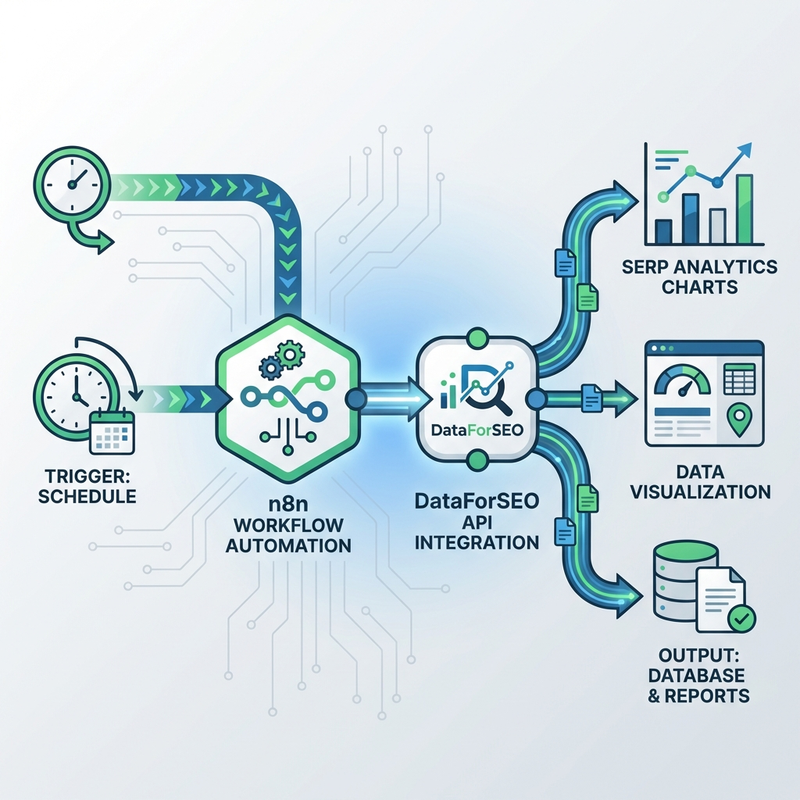
DataForSEO just launched as an officially verified native integration in n8n—meaning it’s no longer a community workaround, but a first-class node with full API support built directly into the platform.
If you’re already using automation tools, this isn’t about saving time—it’s about reliability. No more brittle API wrappers breaking when endpoints change. No more community nodes that stop working after updates. This is official, maintained, and built to last.
What makes this valuable isn’t just automation—it’s dataset breadth. DataForSEO gives you access to one of the widest SEO data sources available: real-time SERP data, backlink profiles, AI Overview mentions, technical audits, competitor intelligence, and keyword insights across 30+ actions. This makes it a powerhouse for prospecting and insights, not just reporting.
This workflow shows you how to build reliable SEO automations with DataForSEO’s native n8n integration: rank tracking alerts, competitor monitoring, AI Overview tracking, and custom prospecting workflows that tap into the full dataset.
Why This Matters for Consultants
Most consultants are short on time, not intelligence. Manual SEO reporting eats 5-10 hours per week:
- Checking keyword rankings across multiple clients
- Exporting SERP data to client spreadsheets
- Monitoring backlink profiles for toxic links
- Tracking competitors’ ranking movements
- Pulling AI Overview data from Google
With DataForSEO + n8n, you build these workflows once and they run forever. No code, no maintenance, just results.
What You’ll Accomplish
By the end of this workflow, you’ll have:
- Real-time rank tracking with automated email/Slack alerts
- Competitor gap analysis flowing directly to Notion or Google Sheets
- Backlink monitoring with automatic toxic link flagging
- AI Overview extraction logged automatically
- Custom automations tailored to your client reporting needs
Prerequisites
- DataForSEO account with API credentials (sign up here)
- n8n instance (self-hosted or n8n Cloud account)
- Basic understanding of workflow automation concepts
- Optional: Slack, Notion, or Google Sheets for output destinations
Step 1: Set Up DataForSEO API Access
DataForSEO uses API credentials for authentication. You’ll need these before connecting to n8n.
- Log into your DataForSEO dashboard at app.dataforseo.com
- Navigate to API Access section in account settings
- Generate new API credentials if you don’t have them
- Copy your API login (email) and API password
- Store these securely—you’ll use them to authenticate n8n
Security tip: Never commit API credentials to version control. Use n8n’s credential storage or environment variables.
Step 2: Install n8n (If Not Already Running)
You have three options for running n8n:
Option A: n8n Cloud (Easiest)
1. Sign up at n8n.cloud
2. Create new workspace
3. Skip installation—you're ready to go
Option B: Self-Hosted with Docker (Recommended)
docker run -it --rm \
  --name n8n \
  -p 5678:5678 \
  -v ~/.n8n:/home/node/.n8n \
  n8nio/n8n
Access n8n at http://localhost:5678
Option C: npm Install (For Developers)
npm install -g n8n
n8n start
Step 3: Connect DataForSEO to n8n
DataForSEO is now a verified n8n integration, which means it’s native to the platform with an official badge.
- Open n8n workflow editor
- Click the + button to add a new node
- Search for “DataForSEO”
- Look for the verified badge (official integration)
- Click to add the DataForSEO node
Configure Credentials
- Click on the DataForSEO node you just added
- Under Credentials, click “Create New”
- Enter your DataForSEO API login (email)
- Enter your DataForSEO API password
- Click “Save”
Your connection is now authenticated and ready to use.
Step 4: Choose Your First Automation
DataForSEO offers 30+ actions. Here are the most valuable for consultants:
SERP & Keyword Actions
Get SERP Results– Real-time search results for any keywordGet Search Volume– Historical and forecasted search volumeTrack Rankings– Monitor position changes over timeGet Related Keywords– Find keyword expansion opportunities
Backlink Actions
Get Backlinks– Full backlink profile for any domainCheck Toxic Score– Identify harmful backlinksMonitor New Backlinks– Alert on new referring domainsCompetitor Backlinks– See who’s linking to competitors
On-Page & Technical SEO
Run Site Audit– Automated technical SEO scansCheck Page Speed– Core Web Vitals monitoringCrawl Website– Full site structure analysis
AI Optimization
Get AI Overview Data– Track Google AI Overview mentionsEstimate AI Search Volume– Keyword frequency in AI tools
Step 5: Build Your First Workflow (Rank Tracking Alerts)
Let’s build a practical workflow: automated rank tracking with email alerts when positions change.
Workflow Architecture
Trigger (Schedule)
  → DataForSEO: Get SERP Results
  → Filter: Position Change Detected
  → Send Email Alert
Implementation Steps
- Add Schedule Trigger
- Click
+to add node - Search “Schedule Trigger”
- Set to run daily at 9 AM:
0 9 * * *
- Click
- Add DataForSEO Node
- Action:
SERP > Get SERP Results - Keyword: Your tracked keyword (e.g., “seo consultant near me”)
- Location: Target location code (e.g., 2840 for US)
- Language:
en - Device:
desktopormobile
- Action:
- Add Function Node (Parse Results)
// Extract your site's current position
const results = $input.item.json.tasks[0].result[0].items;
const yourDomain = "yourdomain.com";

const yourResult = results.find(item =>
  item.url && item.url.includes(yourDomain)
);

const currentPosition = yourResult ? yourResult.rank_absolute : null;

// Compare with previous position (stored in workflow static data)
const previousPosition = $workflow.staticData.lastPosition || null;
const positionChanged = previousPosition && currentPosition !== previousPosition;

// Store current position for next run
$workflow.staticData.lastPosition = currentPosition;

return {
  json: {
    keyword: $input.item.json.tasks[0].data.keyword,
    currentPosition,
    previousPosition,
    positionChanged,
    movement: previousPosition ? (previousPosition - currentPosition) : 0
  }
};- Add IF Node (Filter Changes)
- Condition:
positionChangedequalstrue - This ensures emails only send when position actually changes
- Condition:
- Add Email Node (Send Alert)
- To: Your email address
- Subject:
Ranking Change: {{$json.keyword}} - Body:
Keyword: {{$json.keyword}}
Current Position: {{$json.currentPosition}}
Previous Position: {{$json.previousPosition}}
Movement: {{$json.movement > 0 ? '+' + $json.movement : $json.movement}} positions
Test the Workflow
- Click “Execute Workflow” in n8n
- Check that DataForSEO returns results
- Verify position is extracted correctly
- Confirm email sends on first run (position change from null → current)
Once tested, activate the workflow. It will now run daily at 9 AM automatically.
Step 6: Use Pre-Built Templates
DataForSEO provides ready-to-use workflow templates. Instead of building from scratch, you can import and customize these:
Available Templates
- Rank Tracking to Slack – Daily ranking updates posted to Slack channel
- Competitor Gap Analysis – Find keywords competitors rank for that you don’t
- AI Overview Tracking – Log Google AI Overview mentions to Google Sheets
- Backlink Monitor – Alert on new backlinks or toxic links detected
- Content Ideas Generator – Pull related keywords and questions for content planning
How to Import Templates
- Visit n8n DataForSEO templates page
- Browse available workflows
- Click “Use Workflow”
- Template imports directly into your n8n instance
- Update credentials and customize parameters
- Activate and run
Advanced Workflow Examples
Example 1: Competitor Backlink Monitor
Track when competitors get new backlinks and alert your team.
Schedule Trigger (Daily)
  → DataForSEO: Get Backlinks (competitor domain)
  → Filter: New Backlinks Only
  → Format Data
  → Send to Slack/Notion
Example 2: AI Overview Content Logger
Track which keywords trigger Google AI Overviews and log to spreadsheet.
Schedule Trigger (Weekly)
  → DataForSEO: Get AI Overview Data
  → Filter: AI Overview Present
  → Google Sheets: Append Row
  → Email Summary Report
Example 3: Multi-Client Rank Dashboard
Track rankings for 10+ clients and update a master dashboard.
Schedule Trigger (Daily)
  → Loop: Client List
    → DataForSEO: Get SERP Results (per client)
    → Format Rankings
  → Aggregate Results
  → Update Notion Database
  → Email Weekly Summary
Common Use Cases for Consultants
Client Reporting Automation
- Pull weekly rank changes
- Export to branded Google Sheets template
- Auto-send to client every Monday at 9 AM
Opportunity Detection
- Monitor competitor keywords weekly
- Identify gaps where you’re not ranking
- Send opportunities to content team in Slack
Link Building Tracking
- Check backlink profile daily
- Alert on new referring domains
- Flag toxic links for disavow review
Technical SEO Monitoring
- Run site audit weekly
- Track Core Web Vitals changes
- Alert on new crawl errors or broken links
Troubleshooting
DataForSEO Node Not Found
- Make sure you’re using n8n version 1.0+ (DataForSEO verified integration requires latest version)
- Search for “DataForSEO” with the verified badge—avoid community nodes
- Restart n8n if you just updated
Authentication Errors
- Double-check API credentials are correct (email + password, not API key)
- Verify your DataForSEO account has active credits
- Check API access is enabled in DataForSEO dashboard
Rate Limit Errors
- DataForSEO has rate limits based on your plan
- Add delay nodes between bulk requests (500ms – 1s)
- Use batch processing for large keyword lists
- Upgrade plan if you’re hitting limits frequently
Workflow Not Executing on Schedule
- Ensure workflow is activated (toggle in top right)
- Check schedule trigger cron syntax is correct
- Verify n8n instance is running (self-hosted only)
- Check execution logs for errors
Best Practices
Credential Management
- Store DataForSEO credentials in n8n’s credential manager (never hardcode)
- Use separate credentials per client if managing multiple accounts
- Rotate API passwords quarterly for security
Error Handling
- Add error trigger nodes to catch failures
- Set up email notifications for workflow errors
- Use retry logic for temporary API failures
- Log all errors to monitoring service (Sentry, Datadog)
Performance Optimization
- Batch similar requests together to reduce API calls
- Cache results in workflow static data when possible
- Use filters early in workflow to reduce downstream processing
- Schedule heavy workflows during off-peak hours
Cost Management
- DataForSEO charges per API call—monitor usage in dashboard
- Start with weekly schedules, increase frequency only if needed
- Use filters to avoid processing unchanged data
- Archive old workflows you’re not using
Resources
- DataForSEO API Documentation
- n8n DataForSEO Workflow Templates
- DataForSEO API Explorer
- n8n Community Forum
Next Steps
Once you have basic rank tracking running, expand your automation:
- Add more data sources – Connect Google Analytics, Search Console, Ahrefs
- Build custom dashboards – Send data to Notion, Retool, or custom apps
- Create client-specific workflows – Template and duplicate for each client
- Integrate with CRM – Log SEO opportunities in HubSpot, Salesforce
- Set up anomaly detection – Alert on unusual ranking drops or traffic changes
DataForSEO + n8n turns SEO monitoring from a manual chore into a silent background process. Build your workflows once, let them run forever, and focus on strategy instead of spreadsheets.
Posted in Workflows
Leave a Reply