

Most of my work happens in two kinds of folders. Some hold websites that get deployed: client sites, my own sites, landing pages. The rest hold projects that never face the public: internal tools, pipelines, research, content. Between the two I have well over forty folders, and in any given week I’m really working in about nine of them, usually with a coding agent running in several at once. Behind that, a small team of agents handles research, paperwork and follow-up for each business I run or work with.
For a long time none of it was tied together. I had a pile of terminal tabs, some stale, some with an agent waiting on me that I hadn’t noticed, and agents that knew only what was in the current chat. What fixed it wasn’t one tool. It was a handful of decisions about how the work is organized and what agents are allowed to do.
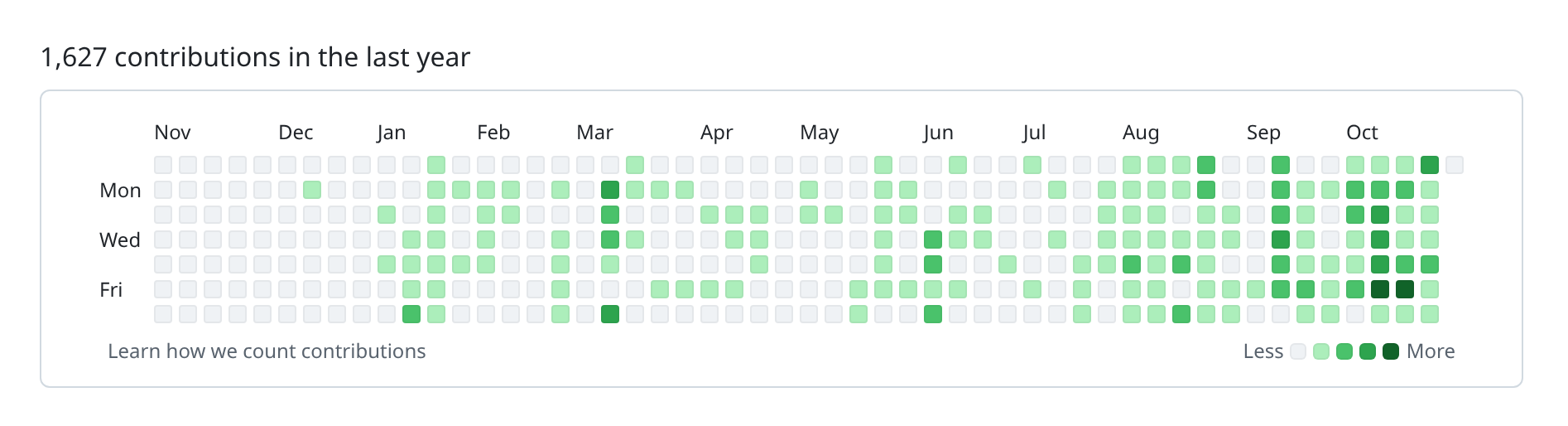
All of this is the culmination of about four years of using AI pretty much every day. Weekdays, anyway. I do occasionally go outside. Here’s the last year of it on my GitHub: 1,627 contributions, starting almost from nothing at the end of 2025. Nearly none of that code was typed by me. The agents wrote it, inside the structure I set up.
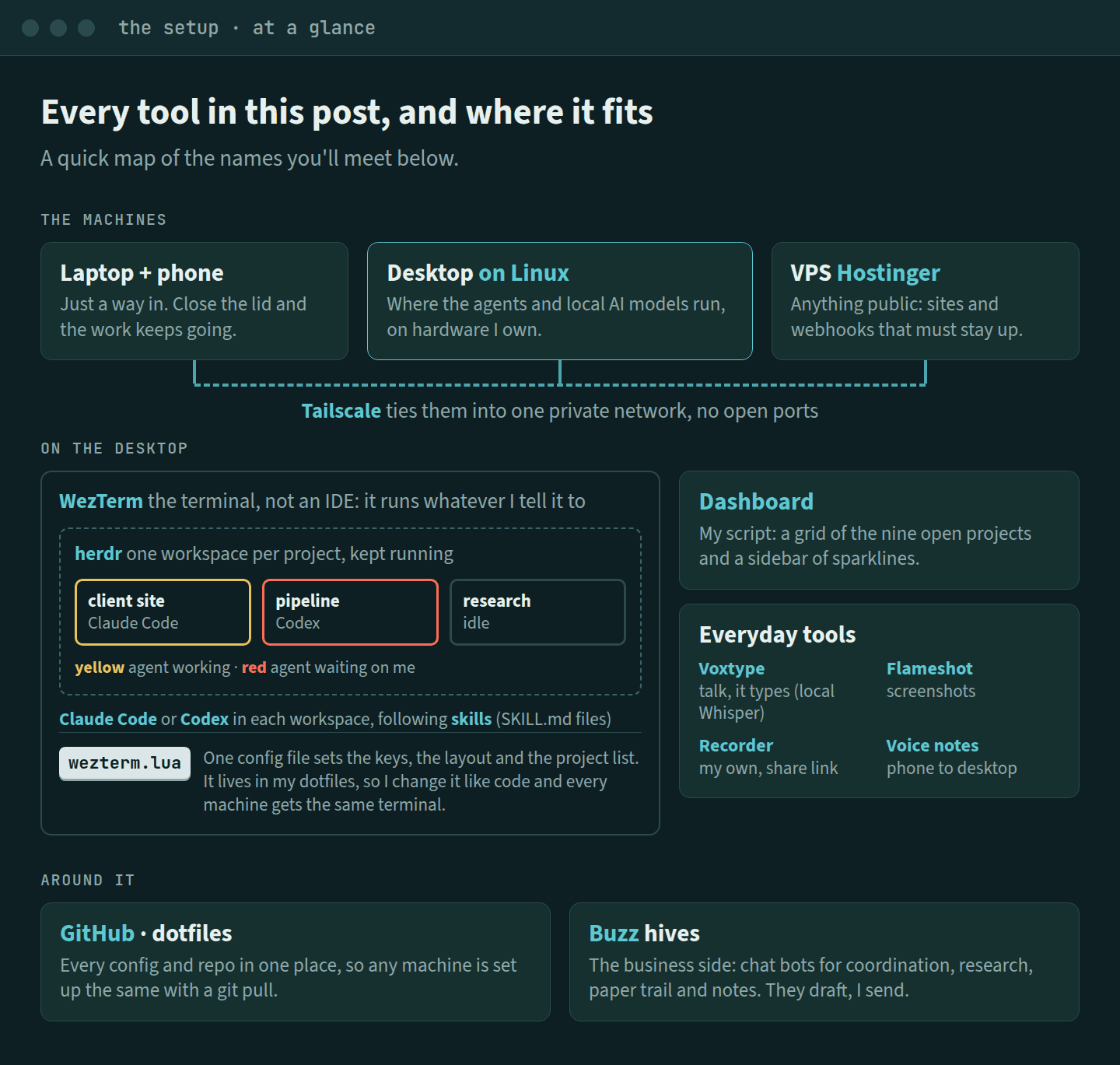
This is that set of decisions, written as what I’d tell any operator starting out, with the piece of my setup that puts each one into practice. Your tech stack will be a little different from mine, and that’s the point. This is a starter: the guts, the meat and potatoes to get going, which you then hand to your agent and make work for yourself. The whole angle is to empower yourself through your own system, not to rent someone else’s. The full kit, with the configs, the tools and the skills, is a private repo for ConsultDex members, and there’s more on that at the end.
Run it on Linux
Before anything else, there’s a question most guides skip: what’s your computer running? Windows, Mac or Linux changes how much of this works without a fight.
I’m an old school Windows user, and my recommendation is to get off Windows and onto Linux. Agents do their work in a terminal. They run commands, read and write files, use git, and run small scripts. Linux is the system that world is built around, and it’s what most of the servers your sites run on use, so what works on your desk works the same way in production.
Linux is also the system the language models know best. Decades of manuals, forum answers, scripts and documentation for it are public, and the models learned from all of it. Ask an agent to fix something on Linux and it usually knows the command, the config file and the likely cause. On Windows, nearly every answer comes with an asterisk, and the agent spends your time working around it. That’s where a lot of the wind in your sails comes from: Linux just works, and the agents already know their way around it.
There’s one good reason to stay on Windows: if creating media is the backbone of what you do, the creative software and hardware support there can outweigh all of this. For running sites and projects with agents, Linux wins.
A Mac is the middle ground. It’s Unix underneath, and most of this carries over. Windows is where it breaks: the tools in my kit rely on file locking and a terminal library that Windows doesn’t have, and the install scripts are written for a Unix shell. If you’re on Windows and not ready to switch, WSL runs a real Linux inside Windows, and that’s where to put this. For what it’s worth, I’ve built and tested all of it on Linux only.
Talk to your computer
If I had to pick the single biggest leg up in this whole setup, it’s this: I stopped typing everything out and started talking to the computer.
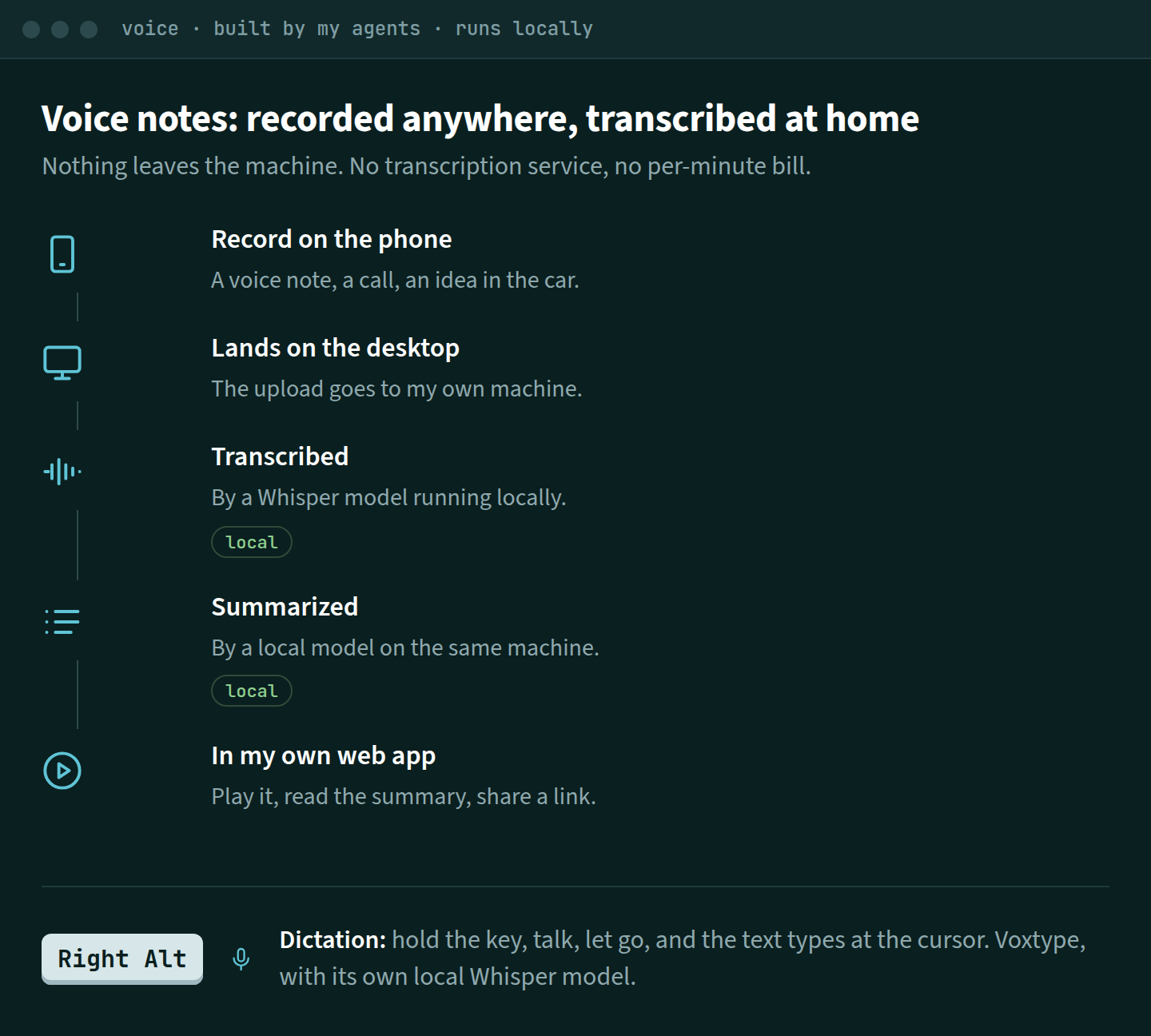
I hold the Right Alt key, say what I want, and let go. The words type themselves wherever the cursor is: a prompt to an agent, an email draft, a note, a commit message. It runs on my own machine with an open source tool called Voxtype and a local Whisper model, so nothing I say goes to a transcription service and there’s no monthly bill.
It matters more with agents than anywhere else. An agent does better work with more context, and almost nobody types a five-sentence explanation when one line will do. Talking, you give the whole picture without thinking about it: what you want, why, what to watch out for, what happened last time. The prompts get better and the typing disappears.
What makes it work well is teaching it your words. Out of the box, a speech model has never heard of your clients, your brands or your tools, so "ConsultDex" can easily come out as "consult decks". Paid dictation apps like Wispr Flow handle this with a custom dictionary, and they do it well, but the unlimited plan runs about $15 a month. You don’t need one. Voxtype has the same idea built in, and it’s a few lines in a text file. Here’s a piece of mine:
[whisper]
model = "large-v3-turbo"
# Names I say often, spelled the way I want them typed.
initial_prompt = "ConsultDex, Claude Code, WezTerm, Django, Python, Voxtype."

[text]
# What it still gets wrong, mapped to what I meant.
replacements = { "claw" = "Claude", "claude code" = "Claude Code" }
The first list nudges the model toward my spellings before it starts listening, so when I say ConsultDex, it types ConsultDex. The second catches what still slips through: "Claude" kept coming out as "claw", and one line fixed it for good. Every time a word comes out wrong, I add one entry. That file lives in my dotfiles, so every machine I sit at knows the same words. The setup notes are in the kit.
Organize the work, then let the agents build
I don’t write this code. The grid, the sidebar, the tools behind the skills, and the skills themselves were all built by the agents, and none of it was coded by hand. My part was the organization: deciding that sites and projects live apart, that only nine stay open, that agents draft and never send, that every date needs a source. That takes some hand-holding at the start. You explain how you want the work organized, correct what’s off, and keep the rules short. Once that’s in place, the agents scaffold and build out their own process inside it: new skills, new tools, new checks when something goes wrong. That part is the most useful thing in the whole setup.
The first decision is the simplest one. Everything lives in ~/sites or ~/Projects. A site has a production environment, a deploy process, and people who notice when it breaks. A project usually doesn’t. Keeping them apart means the label tells me what kind of care a folder needs before I open it.
If you manage a portfolio of client sites, you might split further, by client or by stack. Ask your agent and it’s a one-line change.
Own the rules
The alternative is the polished agents arriving inside the apps you already use, like Meta’s Muse. It looks great and it’s easy: connect your email and accounts, tell it what you want, and it gets on with it. Don’t be fooled by easy. Muse runs on Meta’s machines under Meta’s rules. To its credit, it asks before it pays or sends. But you don’t decide what it’s allowed to do, you can’t tighten a rule after it gets something wrong, and the next update can change how it behaves. When the work touches your clients, your sites and your inbox, you want the rules in files you can read, change and roll back. Control the system, and tune it to how you work.
So don’t copy mine as is. Take the kit, hand it to your agent with your own sites and projects, and have it adapt the structure to how you actually work.
Stop renting your everyday tools
This is one of the main reasons I built any of this, and it’s the part I’d push hardest. The tools you reach for a dozen times a day, screenshots, screen recording, dictation and voice notes, are usually sold as subscriptions. Each one is cheap on its own. Together they’re a monthly bill, and most of them send your screen, your voice and your clients’ words to someone else’s servers to do their job.
On my machine, they’re hotkeys.
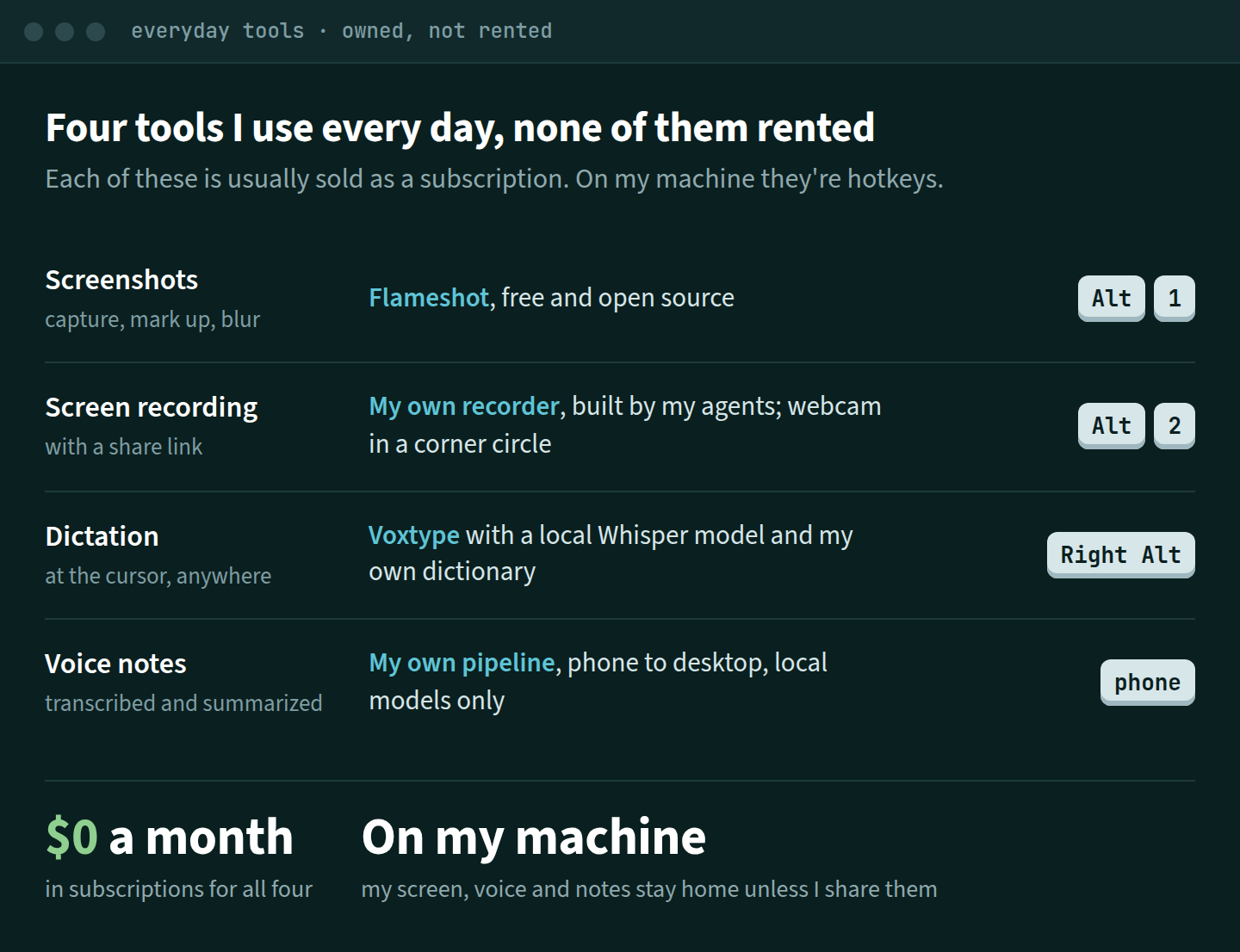
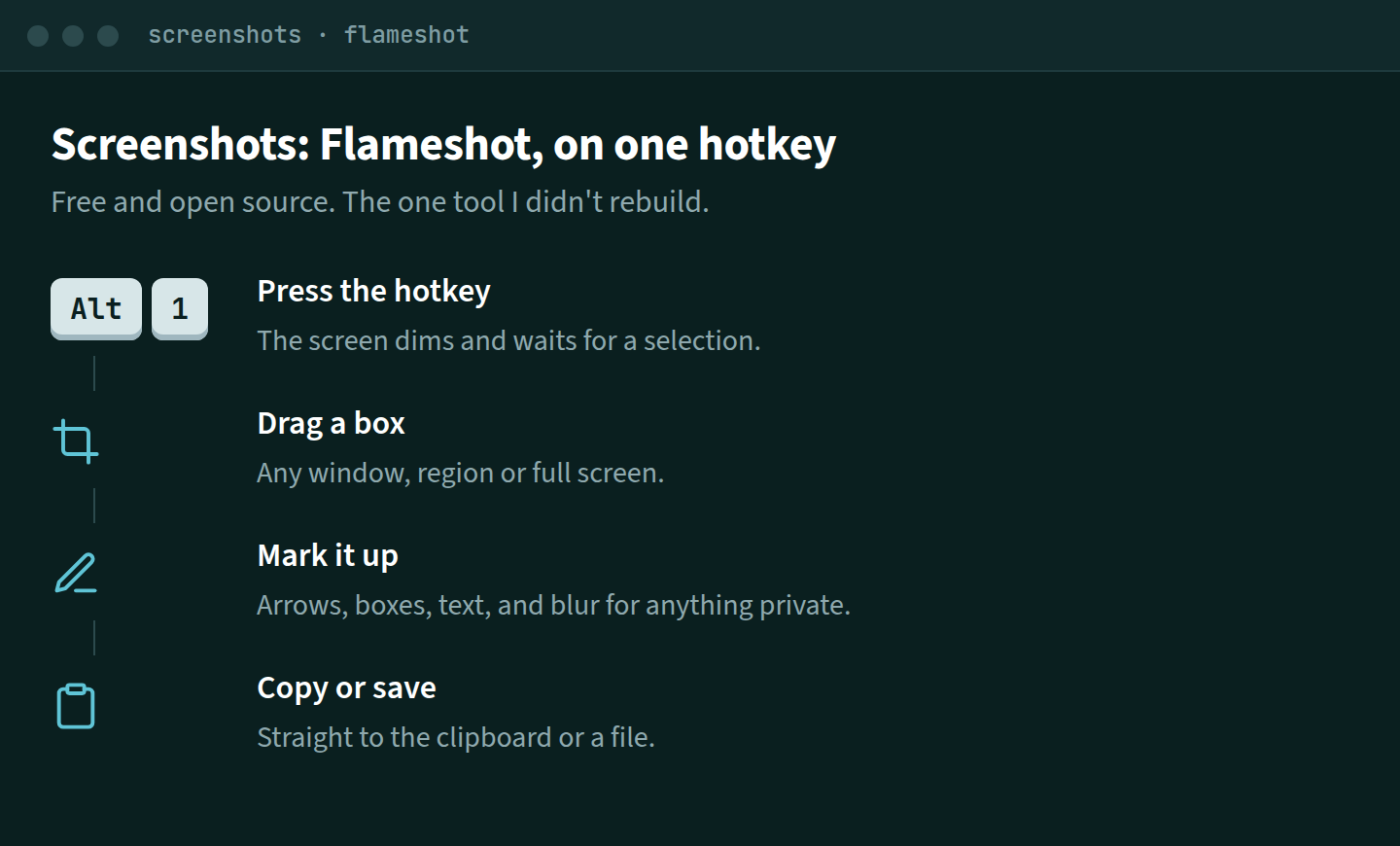
Screenshots: use Flameshot. This is the one I didn’t build. It’s free, open source and light, and it sits on one hotkey. There’s nothing to gain by rebuilding it.
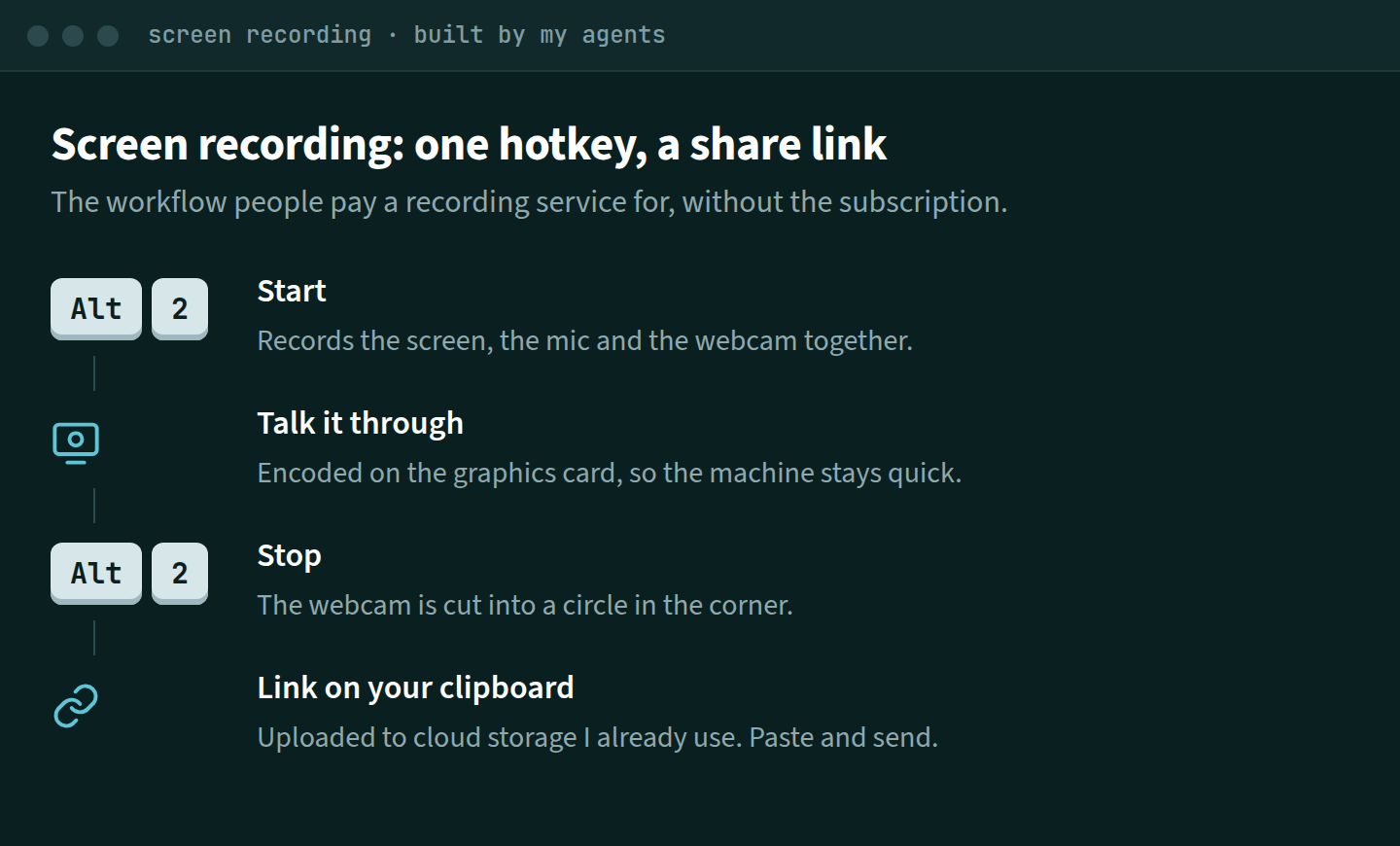
Screen recording: build your own. This is the one worth building. Mine is one hotkey. Press it and it records the screen, the mic and the webcam. Press it again and it puts the webcam in a circle in the corner, uploads the video to cloud storage I already use, and copies the share link to my clipboard. That’s the whole reason most people pay for a recording service, without another subscription.
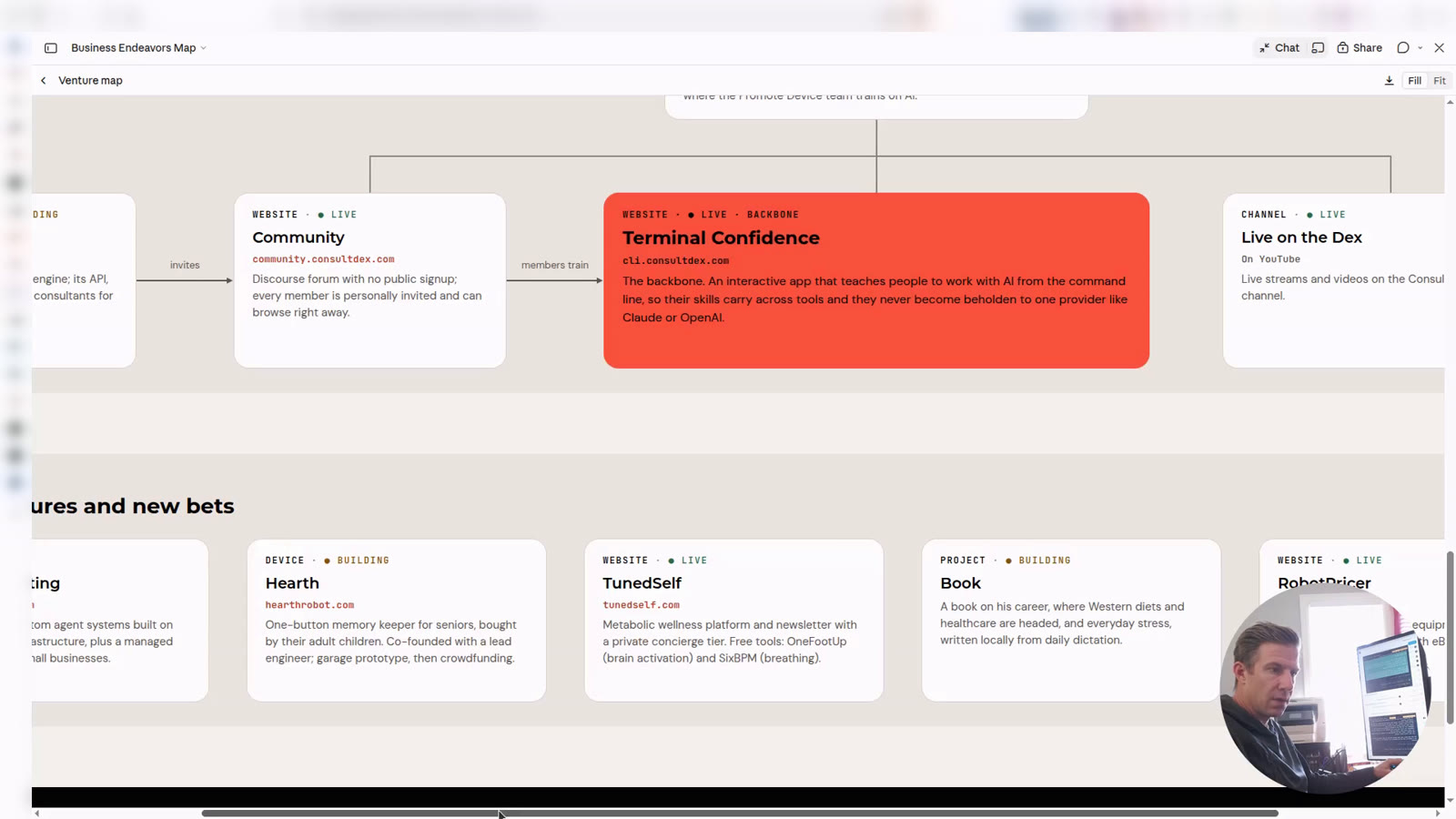
And here’s a frame from a real recording, a walkthrough of my venture map, with the webcam cut into the corner circle. I blurred the browser’s address bar.
Voice notes: build your own. I record voice notes on my phone, which is an Android. If you’re on an iPhone, hand this to your agent and tell it to adapt the phone side. That’s exactly what I would do. They upload to my desktop, get transcribed by a Whisper model running locally and summarized by a local model, and land in a small web app where I can play them, read the summaries and share a link. Nothing leaves the machine. Dictation, from earlier in this post, runs on a local Whisper model too.
None of these is hard. Pick one service you pay for every month, describe to your agent how you actually use it, and have it build the version you own. Then do the next one.
Put what needs you on one screen
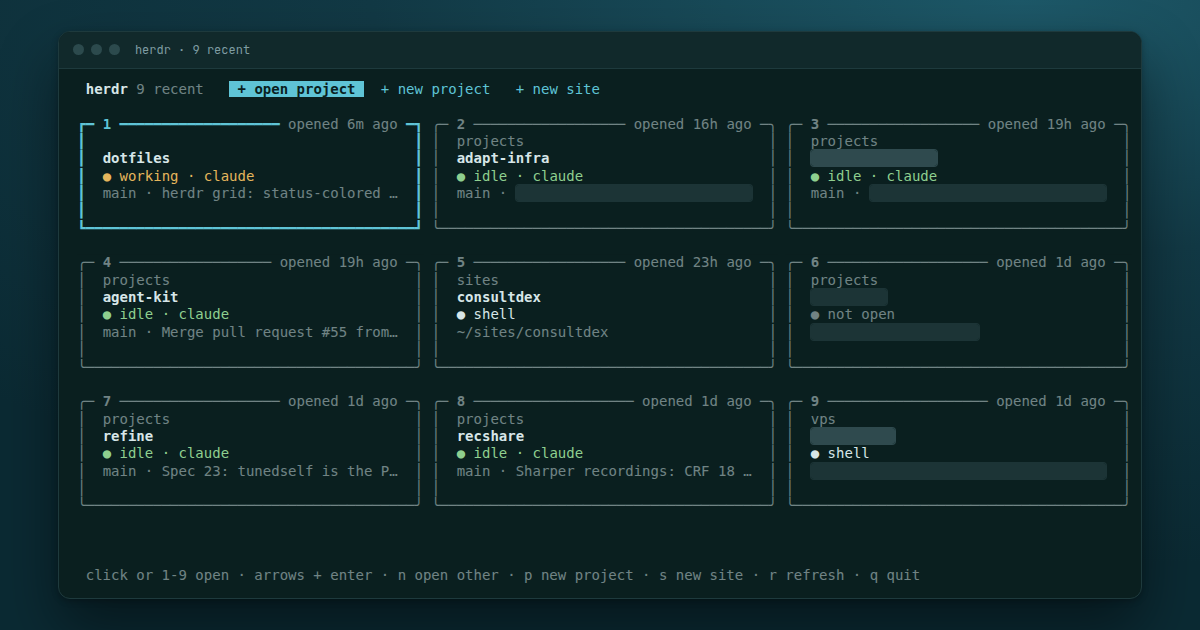
I wanted one screen that answered three questions: what am I working on, which agent needs me, and where has my time actually gone. There are two views. The first is a grid of the nine projects I most recently opened, three across. I click into them:
 herdr 9 recent    [+ open project]  + new project   + new site

 ┏━ 1 ━━━━━━━━━━━━━━━ opened 3m ago ━┓ ╭─ 2 ────────────── opened 7m ago ─╮
 ┃                                   ┃ │  projects                        │
 ┃  dotfiles                         ┃ │  client-portal                   │
 ┃                                   ┃ │                                  │
 ┃  ● working · claude               ┃ │  ● idle · claude                 │
 ┃                                   ┃ │                                  │
 ┃  main · fix grid crash on click   ┃ │  main · Scaffold the build plan  │
 ┗━━━━━━━━━━━━━━━━━━━━━━━━━━━━━━━━━━━┛ ╰──────────────────────────────────╯
Each tile shows the project, what its agent is doing, the branch, and the last commit message. That last line is usually enough to remember where I left off. A tile whose agent is working gets a yellow border. One that’s blocked waiting on me gets red, and that is the main reason the grid exists. The header buttons open any other project, or create a new project or site folder with git already set up.
The second view is a sidebar that stays on the left while I work. It lists the same nine, newest first, and under each name is a sparkline of the last fourteen days:
 ● projects/client-portal
   ·▂▅█▃··▁▆▇▂·▄█ 2h
   main ↑1
Each character is one day, oldest on the left and today on the right. The height is that day’s git commits plus how many times I opened the project, scaled against my busiest day across all nine. A dot means nothing happened. It’s a small thing, but it’s the most honest record I have of where my week went, as opposed to where I thought it went.
Underneath, it’s three pieces. WezTerm is the terminal. herdr is an open source workspace manager built for coding agents: each project gets a workspace, herdr knows whether the agent in it is working, blocked or idle, and the workspaces keep running when the window closes. The third piece is a script my agents wrote, about nine hundred lines of Python with no dependencies, that does the rest: it keeps the history, draws the grid, writes the sparklines, and closes what falls out of the top nine.
Only nine stay open, and this is the decision people push back on. Every time I open a project, anything outside the nine most recent gets its workspace closed. In practice the tenth project is one I haven’t touched in a while, and closing it is what keeps the grid useful. The one exception is a workspace whose agent is still working or blocked. That one is left alone until it’s idle, because killing an agent mid-task to tidy a screen is the wrong trade.
The order also comes from when I opened a project, not from when its files changed. I tried file activity first. Agents and background jobs touch files constantly, and the order jumped around in ways that didn’t match what I was paying attention to. Opening a project is a deliberate act, so it makes a better signal.
Give agents jobs, not a chat window
The grid is where I work with coding agents, one per project. The business side of my work runs somewhere else, in Buzz, a chat app where agents are members of the channels alongside you. Each business I run or work with gets its own Buzz community, which I call a hive, with the same small team of bots in every one:
- Coordinator: the only bot I talk to. I tag it with a goal, one goal per thread, and it decides who does what, tracks every commitment, and is the only one that posts status.
- Research: dossiers on the people and companies involved, red flags phrased as questions, and sourced answers.
- Paper trail: makes sure what was agreed exists in writing. A checklist before a meeting, a recap after it, a confirmation when the other side replies, and a line-by-line diff when they send terms.
- Scribe: keeps each channel’s canvas of decisions and open tasks, and writes a daily dispatch of what moved and what’s waiting on me.
Some hives add a writer, which drafts a newsletter in my voice and learns from what I change before sending. The roles are identical everywhere. A role is a file in one repo that every bot reads before every task, so one commit upgrades every hive at once.
Bots know the job, and playbooks know the business. The roles are the same in every hive. What’s specific to a business, like its voice, who a bot may email, and the terms it always gets in writing, lives in that hive’s notebook and never in a role file. Improve a role once and it’s improved everywhere.
Agents draft, you send
No bot sends email, pays, books, signs, publishes or contacts anyone outside its hive. It drafts, proposes and asks. This is the rule people want to relax first, because sending is where the time savings look biggest. It’s also where one bad call costs you a client.
Keep the truth in files, not chat
Each goal is one card, a small file in that hive’s notebook, and one thread in Buzz. Each bot owns one section of the card and starts every task by reading it, never from what it remembers of the conversation. Threads scroll away and context resets. A card that says the contract renews on March 3, with where that date came from, is still right next month.
You don’t need a fleet of chat communities to use any of this. The kit scales it down to one machine: instead of a hive’s notebook, each project gets an ops/ folder of plain files for deadlines, approvals, email drafts and research notes, and the skills and tools work on that.
Put the rules that must hold in tools
The paper trail role tells the bot to draft and never send, but the reason it can’t send is that the mail tool it’s allowed to run has no sending code at all. It also refuses any address not on that hive’s allow list. Approvals work the same way: a bot can ask, but only I can decide. The prompt explains the rule. The tool enforces it.
Claude Code loads a skill when its description matches what you’re asking for. Every skill my bots use has the same shape. Here’s the shortest one, in the version from the kit, which works on a project’s ops/ folder instead of a hive’s notebook:
---
name: deadlines
description: Record and check dated obligations in the project's deadlines
  ledger (domain and SSL renewals, launches, contract dates, filings, invoice
  due dates). Use whenever you learn a date someone must act by, and before
  answering "what's coming up" or "what's due".
allowed-tools: Bash(ops-deadlines *)
---

# deadlines

ops-deadlines add  --title "One line" --due YYYY-MM-DD --source "<where the
  date comes from, and when you checked>" [--client NAME] --as <your role>
ops-deadlines due  [--within 30]

- Always give a source. A date without one is a guess: say so and don't record it.
- Check `ops-deadlines due` before answering what's coming up. Never from memory.
- Reply with one line: `Recorded: <title>, due <date> (<id>)`.
There are three things in there worth copying even if you never use mine. The description says when to use the skill, not what it is, because that one field decides whether the skill loads at all. The allowed-tools line grants exactly one tool. And every rule should be one you can trace to a failure it prevents. "A date without a source is a guess" is there because an inferred date looks exactly like a real one once it is sitting in a ledger.
The kit’s skills and roles don’t depend on Buzz, or even on Claude. Skills are an open format now, a folder with a SKILL.md that Claude Code and OpenAI’s Codex both read. I ran the kit’s skills in each on the same test project. In both, asking "what do I have coming up?" loaded the deadlines skill without my naming it. And asked to email one address on the allow list and one that wasn’t, both drafted the first and refused the second. The two agent roles are plain instruction files, so you can also paste one into a Claude Project or a custom GPT. In a chat app, though, the tools have nowhere lasting to keep their files, so you get the instructions without the guarantees. For the full version, use a coding agent that runs on your machine.
Start with one good skill
If you want to try a skill before building anything, start with this one. It’s free, and it’s the one I’d hand most people first. Citation Labs publishes an Operating System by Garrett French for finding where a brand isn’t showing up in AI answers, what information is missing, what to change, and whether the change worked. It’s four field guides and six tasks, held together by a strict rule about evidence: every finding keeps the strength it actually earned, and nothing gets upgraded on its way to the next step.
The official way to use it is to upload the guides to a chat and paste a starter prompt. I packaged it as a skill instead, so the setup happens once and the agent pulls in only the parts the current question needs: citation-labs-os-skill on my GitHub. Ask "what do ChatGPT and Perplexity say and cite about us for these prompts?" and it runs a baseline. Say "walk me through the Citation Labs OS" with no particular problem and it gives you the tour.
I added three things on top, clearly marked as mine and not Citation Labs’. The agent can run the prompts in your own signed-in browser and capture every answer and cited link, instead of you pasting them in one by one. It has you turn memory off first, because a "clean" chat that already knows your company is a useless baseline. And it writes the result as a page you can open in a browser, not only a Markdown file. If you’re trying to understand your visibility inside large language models, it’s one of the best places to start. In Claude Code it’s two commands:
/plugin marketplace add greentechgear/citation-labs-os-skill
/plugin install citation-labs-os@citation-labs-os
For Claude on the web or the desktop app, upload the zip from the latest release under Settings, Capabilities, Skills.
Make every machine the same
None of this lives on one computer. Every config I’ve described, the terminal, the dashboard, the sidebar layout, and the global rules Claude Code follows, sits in a private GitHub repo called dotfiles. On each machine those files are symlinks into the repo, so editing my WezTerm config on the laptop edits the repo file. I commit, push, and on the desktop a git pull makes the change live.
That’s what lets me work between computers as if they were one. The agents run on my desktop, inside herdr workspaces that keep going when the window closes, and the laptop is just a way in. I can start something at my desk, pick it up from the laptop, and close the laptop to get on a plane without worrying about what’s still running. It’s all still there when I open it again. I don’t need Codex Cloud or anyone else’s hosted service to keep work alive while I’m away. It runs on hardware I own, in files I can read.
It also means I’m not locked into one AI. The skills are an open format, and herdr runs whatever agent I start in a workspace, so the same project, files and rules work with Claude Code one minute and Codex the next. If one of them starts giving me answers I don’t like, I switch.
Every site and project is its own repo too, and so is the agent kit that holds every role, rule and tool. One text file in the dotfiles lists every repo a machine should have.
So setting up a machine, new or wiped, looks like this:
gh repo clone dotfiles ~/dotfiles
~/dotfiles/install.sh        # link every config into place
~/dotfiles/clone-repos.sh    # bring down every site and project
Then I install the programs and sign in to them. I could wipe a computer tonight and work from another one tomorrow without losing anything, because nothing important exists only on one disk. The habit that makes it true is simple and easy to skip: work isn’t done until it’s pushed.
Two lines I keep firm. Secrets never go in the dotfiles, private repo or not. And programs get installed per machine; only their configs are shared.
Know where everything runs
Once agents are doing real work, it matters which machine does what. I use three kinds, each with one job.
A VPS for anything public. A site customers visit, a webhook that has to answer at three in the morning, a job that can’t depend on my home internet: those go on a VPS, a small rented server that costs a few dollars a month. It’s always on, it has a real address, and if it breaks, it breaks alone instead of taking my desk with it. I use Hostinger for mine. It’s affordable and simple, and a plain Linux VPS is all an agent needs to deploy to.
Local hardware for anything heavy or private. My desktop does the work that’s expensive to rent. The agents run there, the transcription models run on its graphics card, and the recordings and notes live on its disks. If you have a machine with a decent graphics card and enough storage, it’s the cheapest server you’ll ever own, because you’ve already paid for it. It’s also why nothing in the tools section has a monthly bill.
If you’re buying one, the number that matters most for local AI is memory the graphics can use, because that decides how big a model you can run. Mine is one of the small desktops built on AMD’s Ryzen AI Max+ 395 chip with Radeon 8060S graphics, where the processor and graphics share one large pool of memory. It runs the agents, the transcription models and a local language model for summaries side by side. Several companies make machines on that chip, including the Framework Desktop, the HP Z2 Mini G1a, the Beelink GTR9 Pro and the Corsair AI Workstation 300. If you plan to run local models, get the 128 GB memory option. A Mac with Apple silicon and plenty of memory works the same way. For serving alone, without local AI, almost any small, always-on Linux box will do.
Tailscale to tie it together. Tailscale puts every machine I own on one private network: the desktop, the laptop, the phone and the servers. From the laptop I reach the desktop’s agents as if I were sitting at it, without opening a single port on my router. Anything that isn’t meant for the public stays inside that network. The shared transcription server answers only there, and so does the preview I read this post in before it went live. For one person it’s free.
What I haven’t solved
The sidebar data lives in herdr’s memory, so it relies on a timer to come back after a restart. The project list in WezTerm reads the local disk, which isn’t enough if your work lives on a remote machine. The approval gate on one machine is a speed bump, not the cryptographic check my larger system uses. And all of this has been used by one person on one Linux box. I expect it to need changes for anyone else, which is part of why I’m sharing the reasoning and not only the files.
Get the kit
The full kit is a private GitHub repo for ConsultDex members. Treat it as a starter, not a finished product: clone it, then have your agent adapt each piece to your machine, your phone and your clients.
- The terminal dashboard: the grid and sidebar script, my WezTerm and herdr configs, the refresh timer, and setup notes.
- A dotfiles starter: one command makes your own dotfiles repo with the dashboard already in it, plus the scripts that link your configs and clone every repo onto a new machine, and a starter set of global rules for Claude Code.
- Six Claude Code skills: deadlines, approval gate, email drafts, research intake, fact-check, and intel tracking. That last one keeps a dated, sourced file of what you currently believe about a topic like AI search, and asks you when new evidence contradicts it.
- The tools behind them: small Python, no dependencies, all writing to plain files, each with a self-test.
- Two agent roles from my hives: the research analyst, and the writer that drafts in your voice and learns from your edits.
- The local tools: the one-hotkey screen recorder and the voice notes pipeline from this post, the hold-to-talk dictation setup (including how to teach it your words and share one model across machines), and Flameshot.
- The principles and a guide to writing your own skills in the same shape.
Join the ConsultDex community and send me your GitHub username there. GitHub will email you an invite to the repo, and once you accept, git pull keeps you on the latest version. It’s also where to compare setups, ask about the parts that don’t fit your work, and share what you change. The interesting part is never the script. It’s the decisions about what deserves a spot on the screen, and what an agent is never allowed to do.